Update Your Facility Page Today
18 January, 2022
Dear Member,
All Head Professionals, Executive Professionals and Head Teaching Professionals have the ability to update their Facility page information on the PGA of Alberta website. This will allow you to update your Facility information to ensure everything is accurate and up-to-date. See the below table for information that can be updated.
To start making changes on your Facility page, please follow the steps below:
- Login to the PGA of Alberta website by clicking here.
- Under ’My Account’ or ’Manage Account’, click the ’Edit Facility’ tab (see screenshot below).
- Update your Facility information. Click ’Save Changes’ at the bottom of the page once finished.
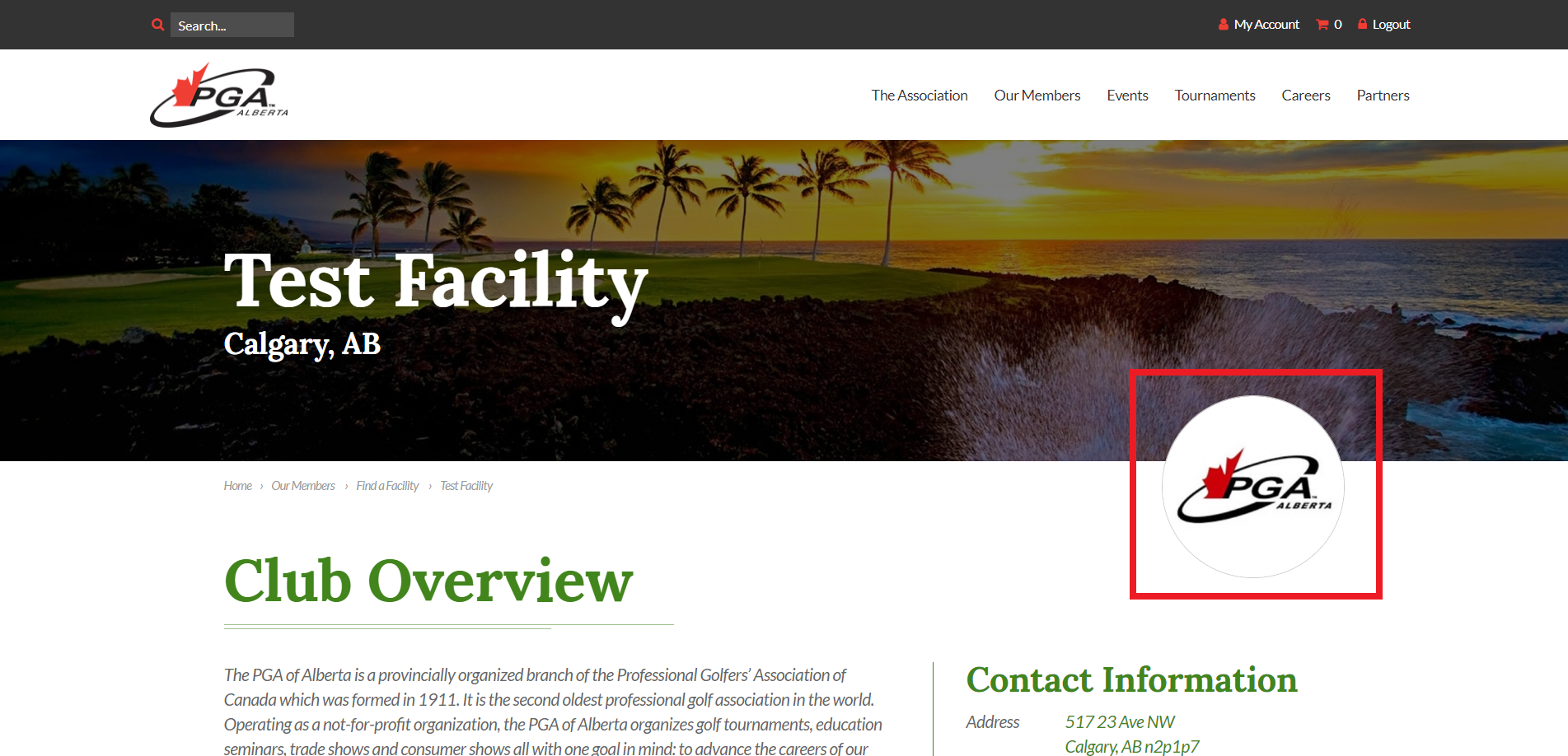
- Click ’View Facility’ after changes have been successfully saved. Make sure your Facility logo and banner image have cropped properly.
.png?1549480785246)
PLEASE NOTE: Only Head Professionals, Executive Professionals and Head Teaching Professionals will be able to make changes to the Facility page. If you want to give access to an Apprentice or Class "A" Professional at your Facility to make changes, or if you have any questions, please contact [email protected]. If you want to update a new Professional at your facility, please notify [email protected].
What To Update
| Facility Type |
Indicate whether your Facility is Public, Private, Resort, etc. |
|
Description
|
Write a description about your Facility similar to what is on your Club/Facility website. This is a perfect place to display any important information to Members and/or the public.
|
|
Address
|
Ensure you Facility’s address is up-to-date and accurate. You even have the option to display your Facility’s location on Google Maps by checking the box ’Display Google Map’.
|
|
Contact Details
|
Make sure your contact information is accurate by putting an updated email address, phone number, and website link that people should use when trying to contact your Facility or find more information.
|
| Logo |
Be sure to include your important Club/Facility logo to ensure your brands presence on your page. For best results, upload a square image no less than 300 x 300 pixel size. Logo will be automatically cropped.
|
| Banner Image |
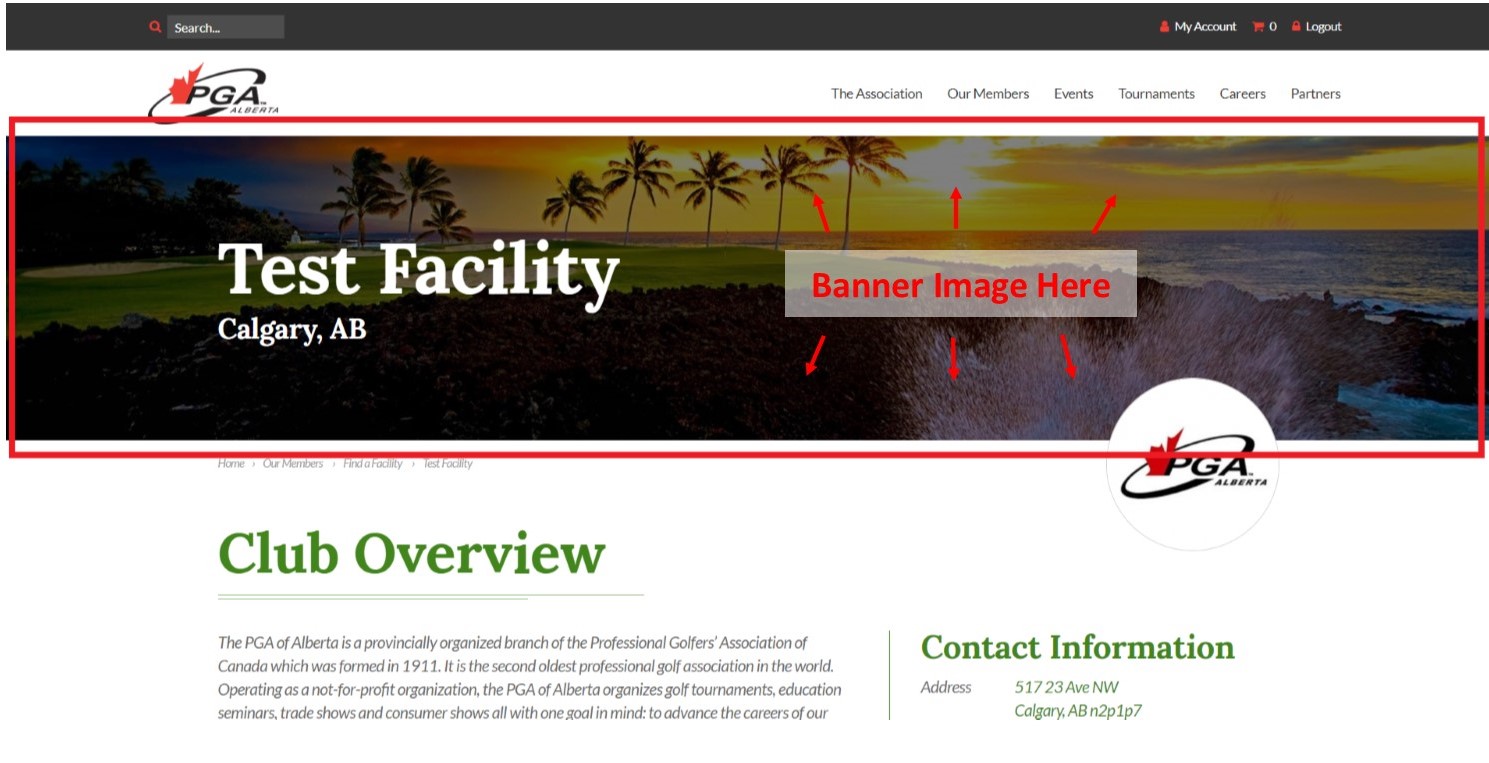
Last but not least, upload a banner image of your course to give your page a unique, genuine feel. For best results, upload a wide image with no less than 1920 x 600-pixel size. Banner image will be automatically cropped.
|
.png?1549478931068)
.png?1549478832599)
.png?1549480137393)
Examples: Below are a few current examples of updated facility pages on the website.
- Example #1 - Click Here
- Example #2 - Click Here
- Example #3 - Click Here